Twitch Donations: How to Set Up Bits, Subs, Tips and One Link for All
Set up Twitch donations step by step: unlock subs and Bits, add a Streamlabs or StreamElements tip page, build a Donate panel and share one support link.
Sooner or later someone in your chat asks, "how do I support you?" If the honest answer is "uh, there's a sub button somewhere," you're leaving people who want to help with nowhere to go. Setting up Twitch donations properly takes an afternoon: turn on Twitch's own support tools, add a tip page for direct donations, put both in your panels, and give viewers one link that holds every option.
This guide walks through each piece in that order. Twitch features and requirements follow the Twitch Help Center as of October 2026; third-party steps follow Streamlabs and StreamElements support pages.
The ways viewers can support you on Twitch
Before you set anything up, know what each option is:
- Subscriptions. Viewers pay a monthly sub and get perks like your emotes and a subscriber badge.
- Bits (Cheering). Viewers buy Bits from Twitch and cheer with them in your chat. The cheer shows up as an animated message.
- Direct tips. A viewer sends money through a third-party tip page, usually connected to PayPal, and an alert can pop up on stream.
- Charity. Twitch's charity tool, available to Affiliates and Partners, raises money for a nonprofit, not for you. It's worth knowing about for charity streams.
Subs and Bits are Twitch's own support tools. Twitch's Help Center doesn't describe a separate built-in tip button, which is why most streamers add a tip page from a service like Streamlabs or StreamElements for direct donations.

Step 1: Turn on Twitch's own support tools
You don't need to be an Affiliate to switch on subs and Bits anymore. Twitch's Help Center describes four levels:
- All streamers can go live and build community, but have no monetization tools.
- Monetization Setup Complete. Any streamer who accepts the Monetized Streamer Agreement and completes onboarding gets subscriptions and Bits (Cheering), plus tools like Channel Points, Hype Train, polls and predictions.
- Affiliate adds more tools and the ability to be paid out.
- Partner is the top tier, by application.
The catch is payouts. Twitch says non-Affiliate, non-Partner streamers aren't eligible for payouts. Their support shows as a balance on the Creator Dashboard that they can use as Spendable Balance on Twitch, for things like gift subs and Bits. Once you reach Affiliate, you can choose to be paid out instead.
How to complete monetization setup
- Click your profile icon and open Creator Dashboard.
- Go to Monetization, then Setup.
- Fill in your legal name, email, optional business name and country of residence.
- Open and read the Monetized Streamer Agreement, then accept it.
If you're between 13 and 17, Twitch asks a parent or legal guardian to agree to the Monetized Streamer Agreement.
The current Affiliate requirements
To be invited to the Affiliate program, Twitch lists four achievements, all within the same 30 days:
- Reach 25 followers.
- Stream for 4 hours.
- Stream on 4 different days.
- Reach an average of 3 concurrent viewers on 4 different days.
You also need Two-Factor Authentication turned on to start Affiliate onboarding. Track your progress under Achievements in your Creator Dashboard. Twitch says invites usually arrive 24 to 48 hours after you become eligible, by email and Twitch notification. Turning on 2FA early saves a step later.
Step 2: Add a tip page for direct donations
A tip page is a simple page where a viewer picks an amount, adds a message and pays. The two services most streamers use are Streamlabs and StreamElements. Both connect to PayPal.
Streamlabs
- Open the Tipping section in your Streamlabs dashboard.
- Connect a payment option such as PayPal and approve the connection.
- Set your currency, minimum amount and preset amounts, then save.
- Copy your Tip Page URL, shown at the top of the Tipping page.
Streamlabs recommends a PayPal Business account so your real name and personal details stay hidden from viewers. That's worth doing before you share the link anywhere.
StreamElements
- Go to Revenue, then Tipping settings.
- Expand Payment Providers and connect PayPal with your account email.
- Under Tip Panel Setup, copy the link to your tipping page.
StreamElements advises verifying your PayPal account before you connect it. Once the tipping page is set up, the StreamElements chatbot's !tip command posts your tipping link in chat.
What about a plain PayPal link?
You can share a PayPal payment link directly, and some streamers do. The downside is that it skips on-stream alerts, and depending on the account type it can show your personal name to anyone who pays. A tip page connected to a business account keeps alerts working and your details private.
Alerts
Both services also offer alert widgets that you add to your streaming software as a browser source, so a tip triggers a sound and animation on stream. Subs and cheers can trigger alerts too. Alerts make support visible, which is a big part of why viewers enjoy giving it.
Step 3: Put it all on your channel page
Viewers look for support options in three places on Twitch: your panels, your social links and your chat.
Add a Donate panel
- On your channel page, switch Edit Panels on, below the video player. When you're offline, go to your channel's About section instead.
- Click the + to add a panel.
- Add a title, an image, the image link (your tip page URL) and a short description. Descriptions support Markdown, so you can add more links.
- Click Submit, then switch Edit Panels off to check how it looks.
Twitch asks for panel images under 1 MB. Images are resized to a maximum of 320 px wide and 600 px high, so design for that size.
Make one panel per action: Donate, Subscribe, Schedule, Discord. A clear button image ("Tip the stream") gets more clicks than a wall of text.
Add social links
In Creator Dashboard, go to Settings, then Channel, then the About tab. You can add up to 5 social links to your channel profile, each with a label and a URL. Twitch notes that social media handles also appear in search results. Your bio in the same tab allows up to 300 characters.
Use chat commands
Set up a !tip or !support command in your chatbot so moderators and regulars can answer "how do I donate?" instantly, even while you're mid-game.
Step 4: Give viewers one link for every support option
Here's the problem with doing all of the above: your support options end up scattered. Subs live on Twitch, tips on Streamlabs, merch on a store, memberships somewhere else, and your YouTube VODs on another site. And panels only help people who are already on your channel page. Someone who finds you through a clip on TikTok or Instagram never sees them.
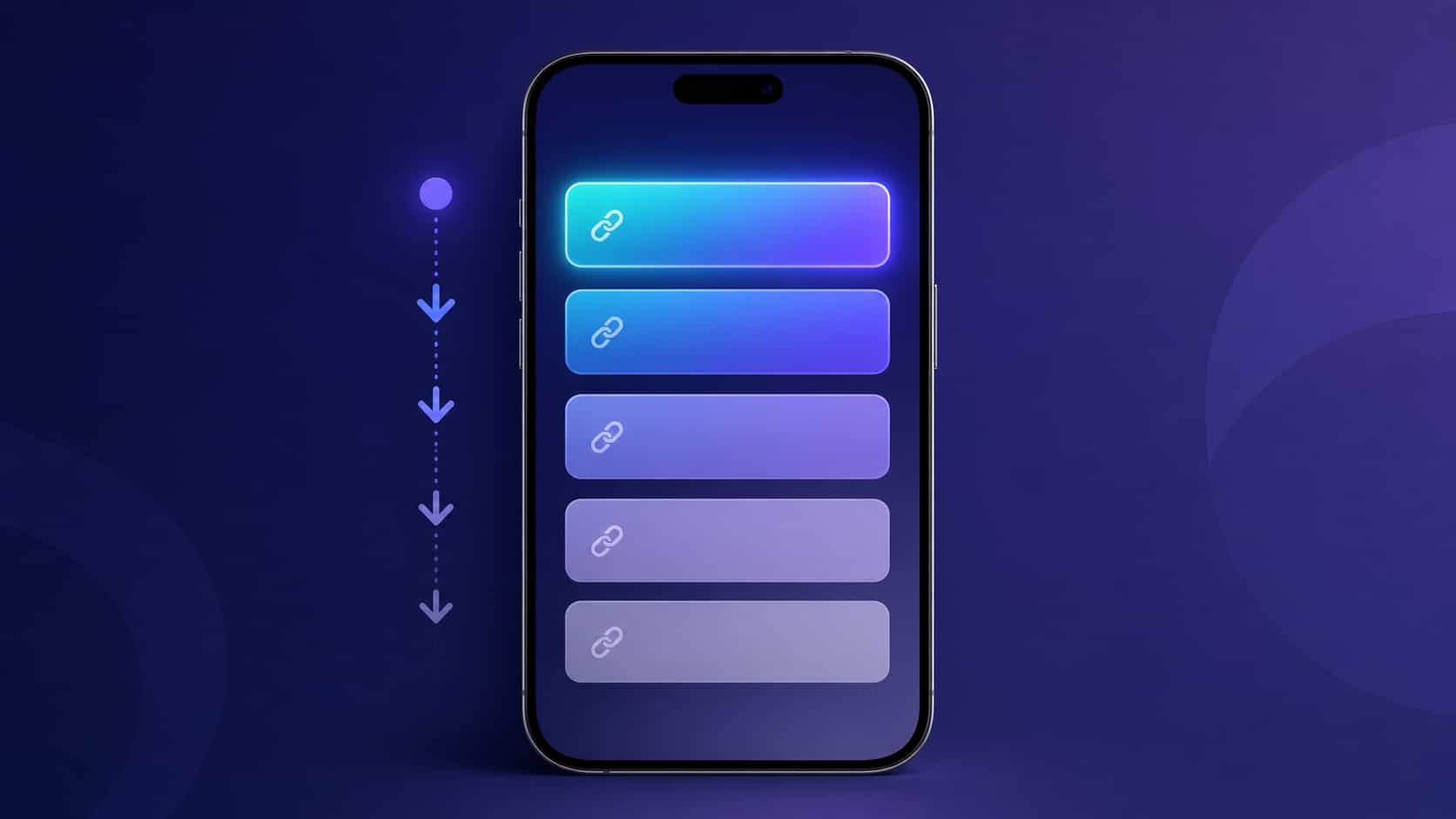
A single link page fixes that. You make one page with every way to support you and every place to follow you, and you share that one address everywhere: in a panel, in your 5 social links, in your !support command, on your TikTok and Instagram bios, and on stream.
A good support page usually has, in this order:
- Tip the stream (your tip page)
- Subscribe on Twitch (your channel)
- Merch (if you have it)
- Discord
- YouTube for VODs and highlights
Put the option your community uses most at the top. Our guide to organizing your links by priority goes deeper into ordering.
Setting it up with VISU
With VISU, that page is your VisuLink at visu.to/yourname. The free plan holds 5 links plus 5 social icons, which fits the list above with icons for your socials. Starter raises the limit to 10 links, Pro to 20 and Premium has no limit. You can switch a link off between events (a charity stream donation link, a merch drop) without deleting it, and VisuLink Analytics shows which support links people actually tap.
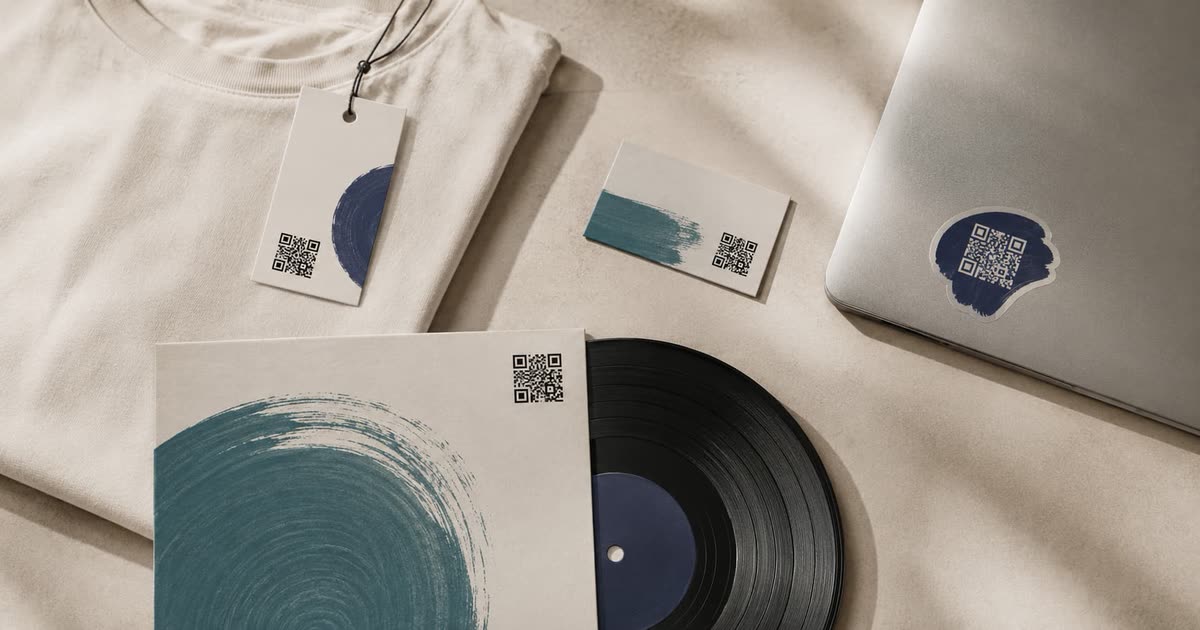
Your account also comes with a QR code that points to the same page. Put it in a corner of your overlay or on your "be right back" screen and viewers on a TV or second screen can scan it with their phone. Our guide on where to place your creator QR code covers on-stream and offline spots. For more setups from streamers, browse gaming creators on VISU.
Good habits once donations are on
- Say thank you by name, on stream, for every kind of support. It matters more than the amount.
- Be clear about where support goes. If a stream raises money for charity, use Twitch's charity tool or a clearly labeled link, not your personal tip page.
- Keep links current. A dead merch link in your panels tells viewers the channel isn't maintained. With one link page, you fix it in one place.
- Don't pressure. Viewers who watch for free are still your community. Make support easy to find, then get back to the stream.
Quick checklist
- Creator Dashboard, Monetization, Setup: accept the Monetized Streamer Agreement to unlock subs and Bits.
- Turn on 2FA and track the 4 Affiliate achievements.
- Set up a Streamlabs or StreamElements tip page with a PayPal Business account.
- Add a Donate panel with your tip page as the image link.
- Add a
!tipor!supportchat command. - Create one support page and share it in your panels, social links, bios and overlay.
Your viewers already want to support you. Make it one tap. Create your free VISU page and put every way to support your stream behind a single link.
Frequently asked questions
Do I need to be an Affiliate to get Bits and subs on Twitch?
No. Any streamer who accepts the Monetized Streamer Agreement and completes onboarding can turn on subscriptions and Bits. Payouts, though, are only for Affiliates and Partners; before that, the balance can be used on Twitch as Spendable Balance.
What are the Twitch Affiliate requirements?
Within the same 30 days: 25 followers, 4 hours streamed, 4 different stream days and an average of 3 concurrent viewers on 4 different days. You also need two-factor authentication turned on.
Does Twitch have a built-in donate button?
Twitch's own support tools are subscriptions and Bits. For direct tips, most streamers add a tip page from a service like Streamlabs or StreamElements and link it in a panel.
How do I add a donate button to my Twitch panels?
Turn on Edit Panels below your video player, add a panel with a title and image, paste your tip page URL as the image link and submit. Keep the image under 1 MB.
How do I share all my support options in one place?
Make one link page with your tip page, Twitch channel, merch, Discord and YouTube, then share that single address in your panels, social links, chat commands and overlay.