How to Add Links to Your YouTube Channel (Desktop and Studio App)
How to add links to your YouTube channel in YouTube Studio or the app, where the links show, why Shorts links don't click, and how to pick your first link.

Your YouTube channel is often the first place a new viewer goes after a video they liked. If your channel page doesn't show where to find your shop, your Instagram, your newsletter or your booking page, that interest disappears the moment they close the tab.
This guide covers how to add links to your YouTube channel from a computer and from the YouTube Studio app, where those links appear, which other places on YouTube accept clickable links and which don't, and how to choose the one link that gets the prime spot. Steps follow YouTube Help as of October 2026.
Where links show up on your YouTube channel
YouTube calls them channel profile links. According to YouTube Help, you can showcase up to 14 links on your channel, as long as they follow YouTube's external links policy.
How they display matters more than the number:
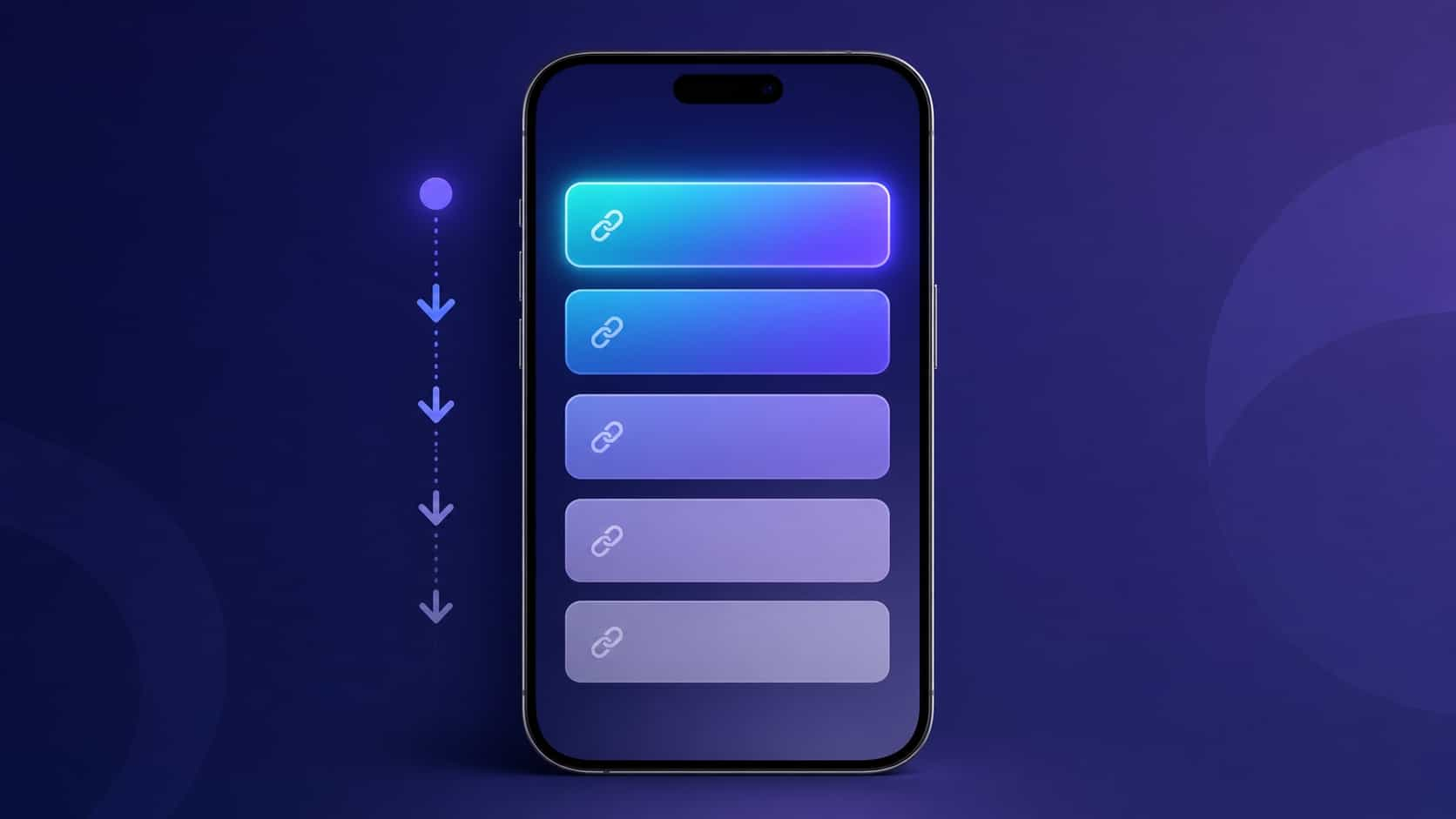
- Your first link is shown prominently in the profile section of your channel, near the Subscribe button.
- The remaining links appear only when a visitor clicks to see more links.
In practice, that means one link does most of the work. Most visitors will see the first link and never open the rest. Older guides talk about "banner links" placed over the channel art; on the current channel layout, the profile section is where that first link lives.
How to add links to your YouTube channel on a computer
- Sign in to YouTube Studio.
- From the left menu, select Customization, then Profile.
- Under Links, click Add link.
- Enter a title and the URL of your site.
- Click Publish.
Repeat step 3 for each link you want to add. Write titles the way a viewer would think about them: "Shop my presets" or "Weekly newsletter" says more than "Website" or "Click here". Labels may vary slightly by language and Studio version, but the path through Customization and Profile is the one YouTube Help describes.
How to add links from your phone (YouTube Studio app)
YouTube Help describes the same change in the YouTube Studio app for Android and iPhone:
- Open the YouTube Studio app.
- In the top right, tap your profile picture.
- Next to your channel description, tap Edit.
- Under Links, tap Edit.
- Tap Add and enter the title and URL of your site.
- Tap Done, then Save.
If you don't see these options, update the Studio app first. Channel settings are easier to manage on a computer, so if something looks different on your phone, the desktop steps above are the reliable fallback.
Which links are clickable on YouTube (and which aren't)
Channel profile links are only one place to share links. YouTube Help has a page on sharing links with your audience, and it draws a clear line between places where links work and places where they don't.
Links that can be clickable
- Channel profile links, the ones covered above.
- URLs in long-form video descriptions and comments. YouTube notes that to add clickable external links here, your channel needs access to advanced features. Established channels with enough history usually qualify automatically, and YouTube also offers identity verification to unlock them sooner. You can check your status in YouTube Studio's settings under feature eligibility.
- Posts on your channel, under the same advanced features condition.
- A Related Video on a Short, which links the Short to another video. It points to YouTube content, not to an external website.
Links that are not clickable
- URLs in Shorts descriptions and Shorts comments. YouTube made these non-clickable to reduce spam and scams. You can still write an address there, but viewers have to type it.
That's why your channel profile links matter so much if you post Shorts. A viewer who wants more from a Short will often tap through to your channel, and the first link near the Subscribe button is the closest clickable link they'll find.
Why your link isn't working or showing
If a link won't save or doesn't appear, check these causes:
- It breaks the external links policy. YouTube doesn't allow links to sites with content that violates its policies. Check that the page you're linking to, and anything it redirects to, is something YouTube would accept.
- You're looking at a Short. URLs in Shorts descriptions and comments are not clickable by design.
- Your description links aren't clickable yet. For long-form descriptions, clickable external links depend on advanced features access.
- You didn't publish. On a computer, changes in Customization only go live after you click Publish.
- You're expecting all links to show at once. Only the first link is displayed up front. The others sit behind the "more links" view.
How to choose your first link
Since only one link is visible on your channel page, choose it on purpose. Ask what a typical viewer wants after watching your videos:
- A cooking channel's viewers want the recipes.
- A gaming channel's viewers want the Discord, the stream schedule or the merch.
- A tutorial channel's viewers want the course, the templates or the tools you use.
- A musician's viewers want the new release on their favorite streaming app.
Often the honest answer is "it depends on the viewer." That's the case for a link-in-bio page as your first link. Instead of betting the prime spot on one destination, the first link opens a page that lists all of them, and the viewer chooses. Our guide on how to make a link in bio walks through building one in a few minutes.
Keep the remaining links for things people look for on purpose, such as your other socials or a business contact page. Because those links are one tap deeper, they work best for viewers who already know what they want.
Put the same link in your video descriptions
Your channel page isn't the only place viewers look. Put the same link-in-bio address at the top of your long-form descriptions, in a pinned comment and on screen for a few seconds in your videos. On Shorts, where URLs don't click, a short address that's easy to type and remember is the best you can do, so keep it simple.
One address everywhere also means less maintenance. When you launch a product or a new collab, you update the page once, and every description, pinned comment and channel link already points to it. Our guide to organizing your links by priority explains how to order that page so the most wanted link sits at the top.
Setting it up with VISU
With VISU, your link-in-bio page is your VisuLink at visu.to/yourname. Add it as your first YouTube channel link and title it something clear, like "All my links". The free plan holds 5 links plus 5 social icons, so your shop, latest video, newsletter, Discord and one current promo fit, with icons for your other profiles. Starter raises that to 10 links, Pro to 20 and Premium has no limit.
You can switch links on and off without deleting them, which helps with time-limited launches. And because the address is short, it also works when people have to type it from a Short. If you're also rewriting the text around those links, our guide to writing a YouTube channel description covers what to say and where your link fits.
Quick checklist
- YouTube Studio > Customization > Profile > Links > Add link > Publish.
- In the Studio app: profile picture > Edit > Links > Edit > Add > Done > Save.
- Up to 14 links; only the first shows near the Subscribe button.
- Make the first link your most useful destination, or a link page that holds all of them.
- Long-form description links need advanced features to be clickable.
- Shorts descriptions and comments don't have clickable links, so keep your address easy to type.
- Write link titles a viewer understands at a glance.
Your channel page is where curious viewers decide whether to follow you anywhere else. Create your free VISU page and give your first YouTube link a page that holds everything you share.
Frequently asked questions
How many links can I add to my YouTube channel?
YouTube Help says you can showcase up to 14 links on your channel. The first one is shown near the Subscribe button and the rest appear when visitors click to see more links.
Where do I add links in YouTube Studio?
Sign in to YouTube Studio, go to Customization, then Profile. Under Links, click Add link, enter a title and URL, and click Publish.
Can I add channel links from my phone?
Yes. In the YouTube Studio app, tap your profile picture, tap Edit next to your channel description, tap Edit under Links, then Add. Enter the title and URL, tap Done and Save.
Why aren't links in my YouTube Shorts clickable?
YouTube made URLs in Shorts descriptions and Shorts comments non-clickable to reduce spam and scams. Use your channel profile links instead, and keep any address you write in a Short easy to type.
Why aren't the links in my video description clickable?
For long-form videos, YouTube requires access to advanced features before external links in descriptions become clickable. Established channels usually qualify automatically; you can also verify your identity to unlock them sooner.