YouTube Channel Description: Template, 10 Examples and How to Edit It
Write a YouTube channel description that turns visitors into subscribers: a fill-in template, 10 channel description examples by niche, how to edit it in Studio and the app, and why it may not show.

Someone finds one of your videos, likes it and taps your channel name. In the next few seconds they decide whether to subscribe or leave. Your banner and your latest uploads help, but the text that explains who you are and why your channel is worth following is your YouTube channel description.
Most channels treat it as an afterthought: a single vague sentence, or a wall of hashtags and raw links. This guide gives you a channel description for YouTube you can actually use: a fill-in template, ten copy-ready examples by niche, the current steps to edit it, and the reasons a description fails to save or show. Steps follow YouTube Help as of October 2026. Button names can vary slightly between app versions.
Channel description vs video description
People mix these up, so first a quick distinction:
- Channel description: one text for your whole channel. It explains what the channel is, who it's for and what to do next. It lives in your profile settings.
- Video description: the text under each video. It covers that video only: timestamps, links mentioned, credits.
This guide is about the first one. If you came here for video descriptions, the same rule applies, though: the first line is the only one most people read.
Where your channel description shows up
YouTube says your description is accessible in the channel header, the area at the top of your channel with your name, handle and subscribe button. Visitors usually see a short preview first and tap to read the rest, along with your links and other channel details.
That preview is the reason the first line matters so much. Many people never open the full text. If your opening words say clearly what the channel is about and who it's for, you've done most of the job before anyone taps.
Your description also gives YouTube and search engines plain text about your channel. It won't rank you on its own, but clear words that match how people search help your channel make sense next to your videos. Our guide to profile SEO covers how that works across platforms.
How to edit your YouTube channel description
On a computer (YouTube Studio)
- Sign in to YouTube Studio.
- In the left menu, select Customization, then Profile.
- Enter your new text in the description field.
- Click Publish.
On the YouTube app (Android and iPhone)
- Tap your profile picture.
- Tap View channel at the top.
- Under your channel description, tap Edit.
- Enter your updated description and tap Save.
If you don't see the edit option in the app, update YouTube or make the change in YouTube Studio on a computer, where every profile setting is available in one place.
A YouTube channel description template that works
Use this structure and adjust the tone to your channel. Each line has a job.
- Line one: what the channel is and who it's for. "Weeknight recipes for busy parents, ready in 30 minutes or less."
- What viewers get and how often. "New videos every Tuesday and Friday: quick dinners, meal prep and lunchbox ideas."
- Why you. One honest sentence of credibility. "I'm a former line cook who now feeds a family of five."
- What to do next. "Subscribe for the next recipe, and grab the printable shopping lists from the first link below."
- Contact. "Business inquiries: use the email on this channel."
That's usually four to six sentences. You don't need more to convince a visitor, and the first two lines carry most of the weight. Studio shows a character counter under the field as you type, so you'll see if you get close to the limit, but a description that sells the channel rarely needs that much room.
YouTube channel description examples you can adapt
Swap the details for yours and keep the shape: topic first, schedule second, one next step.
Gaming: "Cozy and indie game playthroughs with no screaming and no spoilers in the titles. Full streams on weekends, highlights every Wednesday. Join the community through the first link below."
Fitness: "Home workouts for beginners that need no equipment and take under 25 minutes. New routine every Monday. Free four-week plan at the first link below."
Education: "Spanish for English speakers, explained with real conversations instead of grammar tables. Two short lessons a week. Worksheets and the podcast are linked below."
Music: "Acoustic covers and original songs from a Lisbon apartment. New song every other Friday. Listen on every streaming app through the first link below."
Beauty: "Makeup for hooded eyes and mature skin, tested on real faces in daylight. New tutorial every Thursday. Every product I use is listed at the first link below."
Tech reviews: "Honest reviews of budget phones and laptops, kept for a month before I judge them. One review a week, plus a monthly buying guide. Current picks are at the first link below."
Vlog: "A nurse's life between night shifts in Chicago: cooking, running and the parts nobody posts. New vlog every Sunday."
Podcast: "The full video version of a weekly interview show with small business owners. New episode every Monday. Audio versions on every podcast app through the first link below."
Small business: "Behind the scenes at a two-person candle studio: how we pour, pack and ship. New video every other week. Shop the scents at the first link below."
Parenting: "Easy crafts parents can set up in ten minutes with things already at home. New idea every Wednesday. Printable templates at the first link below."
Notice what they share: a clear topic in the first words, a schedule, and one place to go next.
How to add links to your YouTube channel
Links live in their own section, separate from the description text, and they're what people actually tap. According to YouTube Help:
- You can show up to 14 links on your channel.
- Your first link is displayed prominently in the profile section near the subscribe button.
- The rest appear when viewers choose to see more links.
- Links must follow YouTube's external links policy.
To add them on a computer, go to YouTube Studio, Customization, Profile, find Links, click Add link, enter a title and the URL, then click Publish. In the YouTube Studio mobile app, tap your profile picture, tap Edit next to your channel description, then Edit under Links, tap Add, enter the title and URL, and save.
The VISU angle: one link instead of eight raw URLs
Many channels paste every address they own straight into the description: shop, Instagram, TikTok, podcast, Discord, Patreon, newsletter, merch. On screen that becomes a block of long URLs that pushes your actual pitch out of view, and you have to edit the description every time something changes.
A cleaner approach:
- Keep the description for words: who you are, what you post, why subscribe.
- Use the Links section for taps, and make your first link count, since it's the one shown near the subscribe button.
- Point that first link to a link-in-bio page that holds everything else.
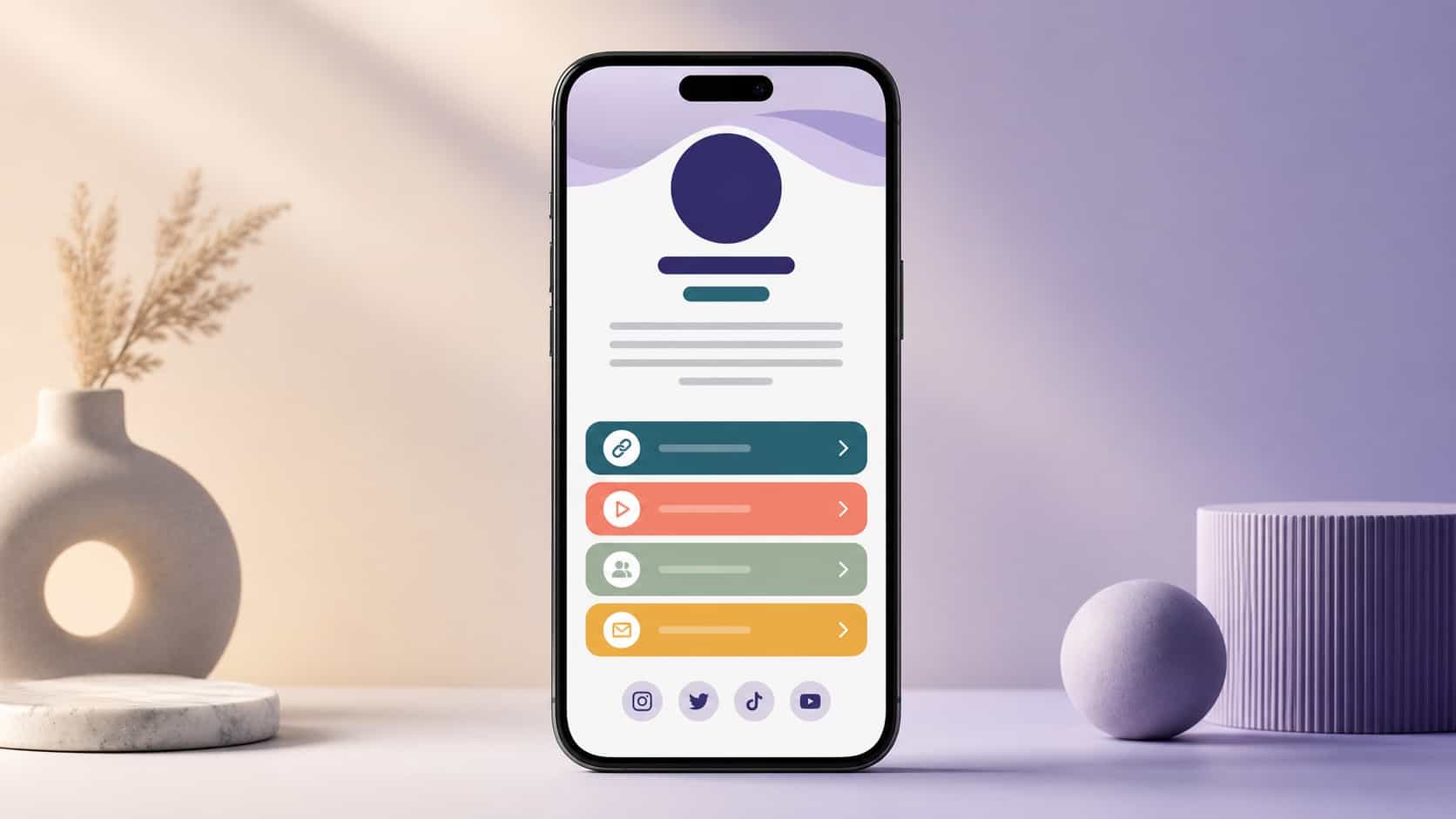
With a page like VISU, your first YouTube link becomes one address, such as visu.to/yourname, that lists your shop, socials, newsletter and current collaborations in the order you choose. When you launch something new, you update the page once and the link on YouTube stays the same. You can also see which links people tap from it, which raw URLs in a description won't tell you.
If your description mentions a link, refer to it plainly: "Everything I use is at the first link below." One clear instruction beats a list.
Why your channel description isn't saving or showing
- You edited it in the app and nothing changed. Check that you tapped Save, then reload your channel. If the app doesn't offer the option, make the change in YouTube Studio on a computer.
- You forgot to click Publish in Studio. Changes in the Profile tab stay as a draft until you publish them.
- Viewers see a different text. If you added a translation, people whose YouTube language matches it may see the translated description instead of the original. Update both when you change one.
- The change hasn't spread yet. Profile changes can take a little while to appear everywhere. Refresh before editing again.
- The text breaks the rules. Your description has to follow YouTube's Community Guidelines, and links have to follow its external links policy.
Keep your handle and name consistent
Your handle is part of your channel URL, so it works like your address on YouTube. YouTube Help notes you can change your handle twice within a 14-day period, and the same limit applies to your channel name. Changing your channel name also removes a verification badge if you have one, so plan name changes carefully.
The practical rule: use the same handle on YouTube, Instagram, TikTok and your link page where you can. When someone hears your name in a video, they should be able to find you anywhere by typing it once. Our guide to writing a creator bio that reflects your brand has more on keeping your voice consistent across profiles.
Extra settings worth filling in
- Contact info. Under Profile in Studio, you can add a business email. Brands and collaborators look for it, so you don't need to write your email inside the description.
- Translations. YouTube lets you add translations of your channel name and description. If you have a large audience in another language, a translated description makes your channel clearer to them. In Studio, under Profile, select Add language, choose the original and translation languages, enter the translated text and click Done.
Common mistakes to avoid
- Starting with "Welcome to my channel!" It wastes the most visible line. Start with the topic.
- Stuffing keywords or tags. A list of search terms reads as spam to people and adds nothing YouTube can't already see in your videos.
- Being vague. "Videos about life and stuff I like" gives a visitor no reason to subscribe.
- Outdated details. An old upload schedule or a dead promo makes the channel feel abandoned. Review the description whenever your content changes.
- Pasting every URL. Use the Links section and one link page instead.
For a broader checklist that covers your photo, banner, bio and links together, see our creator profile optimization playbook.
Quick checklist
- First line says what the channel is and who it's for.
- Mention what you post and how often.
- One sentence of credibility and one clear next step.
- Edit in YouTube Studio: Customization, Profile, Publish.
- Use the Links section, up to 14 links, and make the first one count.
- Keep your handle the same across platforms.
- Add contact info and translations if they fit your audience.
Your description sells the channel and your first link carries people to everything else. Create your free VISU page and give that first link one address that holds your shop, socials and latest projects.
Frequently asked questions
What is a good description for a YouTube channel?
One that says in the first line what the channel is about and who it is for, then what you post and how often, one sentence of credibility and one clear next step, such as a link to everything else.
How do I change my YouTube channel description?
On a computer, open YouTube Studio, go to Customization, then Profile, edit the description and click Publish. In the YouTube app, tap your profile picture, View channel, then Edit under your description and tap Save.
How long should a YouTube channel description be?
Four to six sentences is usually enough. Studio shows a character counter under the field, but visitors mostly read a short preview, so the first line carries most of the weight.
Why is my YouTube channel description not showing?
Check that you clicked Publish in Studio or Save in the app, then reload your channel. Changes can take a little while to appear, and viewers may see a translated version if you added one for their language.
How many links can I add to my YouTube channel?
Up to 14 links in the Links section. The first one is shown prominently near the subscribe button, so many creators point it to a link-in-bio page that holds everything else.