How to Switch to a Creator Account on Instagram (Professional Account Guide)
How to switch to a creator or business account on Instagram in the app or on a computer, what you gain and give up, how to switch back and what to set up right after.

If you post on Instagram with any goal beyond sharing with friends, a professional account is the version of Instagram built for you. It gives you insights on every post, a Contact button on your profile, a sorted inbox and access to monetization and ads tools. Switching takes about a minute, it's free, and you can switch back any time.
This guide covers how to switch to a creator account on Instagram step by step, the difference between Creator and Business, what changes when you switch and the setup steps worth doing right after.
Creator vs. Business: which professional account to choose
Instagram has two kinds of professional account. Both are free, and both unlock the same core tools. The difference is who they're designed for.
According to Instagram's Help Center:
- Creator accounts are best for public figures, content producers, artists and influencers.
- Business accounts are best for retailers, local businesses, brands, organizations and service providers.
A simple way to decide: if people follow you, choose Creator. If people buy from a shop, a brand or a service with its own name, choose Business. A photographer who posts their own work is usually a creator. A studio with a team and a storefront is usually a business.
You're not locked in. Instagram lets you switch between Creator and Business, or back to a personal account, whenever you want. One detail worth knowing before you choose: Instagram's help notes that its licensed music library isn't available to every account type, so if trending audio is central to your content, check what your audio picker shows after switching.

How to switch to a creator account on Instagram (app)
These are the steps from Instagram's Help Center. Menu labels can vary slightly by app version.
- Go to your profile by tapping Profile or your profile picture in the bottom right.
- Tap the More button (three lines) in the top right to open Settings and activity.
- Under For professionals, tap Account type and tools.
- Tap Switch to professional account.
- Select a category that describes what you do, such as Artist, Musician or Digital creator. The category doesn't decide whether you get a Creator or Business account.
- Choose Creator (or Business) and tap Next.
- Complete the optional profile steps, or tap the X in the top right to skip them.
After that, Instagram may ask you to add contact details and connect a Facebook Page. Both steps are optional. You can tap Don't use my contact info and Skip, and come back to them later.
How to switch on a computer
You can also switch on instagram.com:
- Click More, then Settings.
- Under For professionals, select Account type and tools.
- Click Switch to professional account.
- Choose Creator or Business and click Next.
- Select your category and click Done, then confirm with Continue.
What changes when you switch
Switching gives you a set of tools that personal accounts don't have. Instagram's Help Center lists these:
- Professional dashboard. One place to track performance and find professional tools.
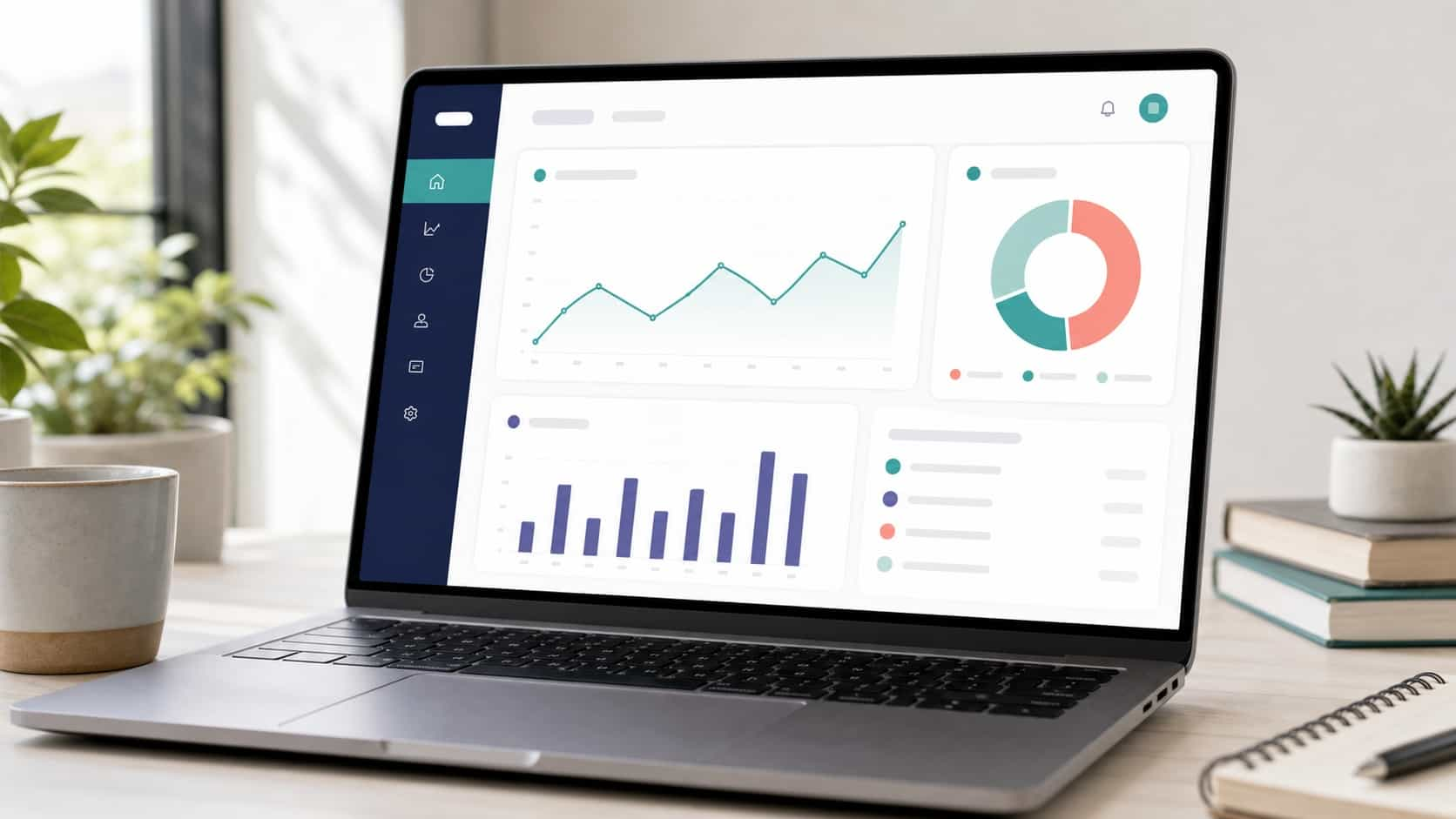
- Insights. Who your followers are, when they're online and how each post, reel and story performed. Our guide to understanding your creator analytics explains which numbers to watch first.
- Contact button. A button near the top of your profile with an email address, phone number or directions.
- Category label. A label like "Digital creator" under your name, which you can show or hide.
- Organized inbox. Primary, General and Requests folders, so messages from collaborators don't get lost between DMs from friends.
- Ads and monetization. You can run ads from your account and check which monetization tools you're eligible for.
- Search engine visibility. Instagram says posts and reels from professional accounts may appear in search engine results outside Instagram, and there's a setting to turn this off.
Professional accounts also make it easier to manage repeated questions. If people keep asking about prices, booking or shipping, Instagram quick replies let you answer with a saved message in a couple of taps.
The trade-offs
There are two things to know before you switch:
- Professional accounts can't be private. If your personal account is private, switching makes it public, and all pending follow requests are accepted automatically. If you want a private space, keep a separate personal account.
- Facebook sharing goes through the Page. If you link a Facebook Page, you can share Instagram posts to Facebook only through that Page, not to another Page or your personal Facebook profile.
How to switch back to a personal account
Changed your mind? In the app:
- Go to your profile and tap More to open Settings and activity.
- Tap Account type and tools, then Account type.
- Tap Switch account type, choose Personal and tap Switch.
Instagram warns that going back to personal removes access to ads and may remove access to some tools, and any connected Facebook Page will be disconnected. Your posts, followers and messages stay.
You can use the same menu to switch between Creator and Business.
Set up your profile right after switching
The switch only gives you the tools. These five steps are what make the profile work.
1. Pick your category label on purpose. People read it before they read your bio. If "Digital creator" says nothing about what you do, choose something more specific, like Photographer, Chef or Musician, or hide the label.
2. Decide what goes in the Contact button. An email for collaborations is the safest choice for most creators. Only add a phone number if you're happy to get calls and messages from strangers.
3. Rewrite your bio with a next step. Say who you are, what you post and what to do next. Keep the last line for an action: "Book a session below" or "New video every Tuesday, links below."
4. Put your main link in the Links field. Your bio text doesn't make addresses clickable. Go to Edit profile, then Links, to add a clickable link. If you want more than one destination, our guide on how to add multiple links to your Instagram bio covers the options.
5. Check your insights after two weeks. Look at which posts brought profile visits and follows, not just likes. That tells you what to post more of.
Where VISU fits
The Contact button handles email and phone. Everything else, such as your portfolio, booking page, shop, latest video and your other social profiles, needs one address that holds all of it. That's what your VISU page at visu.to/yourname is for: add it to the Links field once and update the page behind it whenever your priorities change.
The free plan holds 5 links plus 5 social icons, Starter holds 10 links, Pro holds 20 and Premium has no limit. Your Instagram insights show which posts bring people to your profile, and your VISU analytics show your page visits by country, device and time.
Quick checklist
- Choose Creator if people follow you, Business if they buy from a brand or shop.
- In the app: Profile, More, Account type and tools, Switch to professional account.
- Pick a category, choose Creator or Business, then Next.
- Remember professional accounts are always public.
- Set the category label, Contact button and bio with a clear next step.
- Add your main link in Edit profile, then Links.
- Review insights after two weeks to see what brings visits.
A professional account gives you better tools, and your profile still has to tell visitors where to go. Create your free VISU page so the link in your new professional profile leads somewhere complete.
Frequently asked questions
How do I switch to a creator account on Instagram?
Go to your profile, tap More to open Settings and activity, then under For professionals tap Account type and tools and Switch to professional account. Pick a category, choose Creator and tap Next.
What is the difference between a creator and a business account on Instagram?
Instagram recommends Creator for public figures, content producers, artists and influencers, and Business for retailers, local businesses, brands, organizations and service providers. Both are free professional accounts with insights, a Contact button and ads tools.
Is an Instagram professional account free?
Yes. Switching to a creator or business account costs nothing. You only pay if you choose to run ads.
Can a professional Instagram account be private?
No. Professional accounts are always public. If your account is private, switching makes it public and accepts pending follow requests automatically.
Can I switch back to a personal account?
Yes, any time. Go to Account type and tools, then Account type, and choose Switch account type. You lose access to ads and some tools, and any linked Facebook Page is disconnected, but your posts and followers stay.