How to Start a Podcast on Spotify (Spotify for Creators Guide)
How to start a podcast on Spotify: plan the show, record and edit, create it in Spotify for Creators, publish your first episode and get it on every listening app.
Starting a podcast on Spotify is simpler than most people think. You don't need a hosting contract, a studio or a distribution deal: Spotify's own platform, Spotify for Creators, hosts your show and publishes it on Spotify, and it gives you an RSS feed to take the same show to other listening apps.
What has changed is how you make the episodes. Spotify for Creators no longer has its own recording and editing tools, so you record elsewhere and upload a finished file. This guide walks through the whole path: planning the show, recording, creating the show in Spotify for Creators, publishing your first episode, distributing to other apps and making it easy for listeners to find you. Steps follow Spotify for Creators support as of October 2026.
Before you start: plan the show
A few decisions up front save a lot of rework:
- Topic and listener. Who is this for, and what do they get from each episode? "Weekly interviews with first-time founders about their first 100 customers" is a show. "Me talking about business" isn't yet.
- Format and length. Solo, co-hosted or interviews. Pick a length you can sustain, and keep it consistent so listeners know what to expect.
- Show name. Clear beats clever. If people can't guess what the show is about from the name, they won't search for it or remember it.
- Cover art. It's the first thing people see in every podcast app. Make it legible at a small size, with a short title and strong contrast.
- Schedule. Choose a rhythm you can keep for months, not weeks. Having two or three episodes recorded before launch takes the pressure off.
Spotify's support center also has an article with content ideas for your show if you're still shaping the concept.
One eligibility note: Spotify for Creators support says you can't use the service if you're under 13, and if you're under the age of majority (often 18), you need consent from a parent or guardian.

Record and edit your first episode
Spotify for Creators support says its own recording tools are no longer available, and you can't record or edit audio or video inside the platform. You upload completed episodes instead. Spotify's suggestions for recording and editing:
- Your device's built-in voice recorder. The simplest way to start: open the recorder on your phone, tablet or computer, hit record and save the file.
- Riverside, which Spotify integrates with, for recording multi-track audio or video, including with remote guests, and importing the file into Spotify for Creators.
- Other remote tools such as Descript or Zoom.
- Editing apps like GarageBand, Audacity, Adobe Audition, Pro Tools or Ferrite for audio, and iMovie, Adobe Premiere or DaVinci Resolve if you also make video.
Whatever you use, export your episode as MP3, M4A or WAV, in mono or stereo. Those are the audio formats Spotify for Creators supports, and support says there's no file size limit, though larger files take longer to process.
A quiet room and a microphone close to your mouth will do more for your sound than any expensive gear. Record a two-minute test, listen back on headphones and fix the room before you record a full episode.
How to start a podcast on Spotify, step by step
1. Create your show in Spotify for Creators
- Log in to creators.spotify.com with your Spotify account.
- Select your avatar, then choose Add a new show. On a phone, open the menu first.
- Choose Create a new show. This is the option Spotify recommends if you're launching a brand-new podcast.
The other option, finding an existing show, is for podcasts already hosted somewhere else, like Buzzsprout, Libsyn or Podbean. In that case you claim or submit the show with its RSS feed instead.
2. Add your show details and cover art
Fill in the show details the setup asks for, such as the name and description. The exact fields may vary as Spotify updates the flow. To add or change cover art later:
- On the web: go to Settings, click Update show art, then Upload an image.
- In the mobile app: tap Podcast, then Edit Details, tap your show's cover art and select an image.
Spotify says cover art changes typically show within 24 hours. Episodes use your show's cover by default, and you can add custom artwork to individual episodes on the web.
3. Upload and publish your first episode
- On the web, click New episode, then Select a file to upload your audio. In the mobile app, tap Podcast, then + and Select a file.
- On the Details page, give the episode a title and description, and make your selections under Content checks. Under Additional details you can add season and episode numbers and episode artwork.
- Under Publish date, choose Now to publish right away or Schedule to pick a date.
Before your first episode can go live, you need to verify your account. Spotify sends a verification email when you create your account; if you can't find it, check spam and Spotify's help article on missing verification emails.
When you publish, the episode goes live on Spotify right away unless you scheduled it. Don't upload audio that belongs to someone else, such as songs you don't have rights to: Spotify's terms don't allow it.
4. Optional: publish video episodes
Spotify for Creators supports video too, so you can upload video episodes alongside or instead of audio. Keep in mind that, according to Spotify, videos and video episodes are only available on Spotify. If you distribute your show to other apps, those episodes play as audio only there.
Get your podcast on other apps
Hosting with Spotify for Creators publishes your show on Spotify automatically. To reach listeners on Apple Podcasts, Amazon Music and other apps, you submit your show to each one yourself, using your RSS feed.
- Publish your first episode. Spotify creates your RSS feed at that point.
- On the web, go to Settings, then Availability, and scroll to RSS Distribution.
- Enable your feed and copy the RSS link.
- Submit that link to each platform. Spotify's support has steps for Amazon Music, Apple Podcasts, Castbox, Goodpods, iHeartRadio, Overcast, Pocket Casts and RadioPublic. Apple Podcasts, for example, asks for an Apple ID and your RSS feed.
Before you enable the feed, know two things Spotify points out: your email address becomes visible to anyone with your feed link, because platforms use it to verify ownership, and some apps may list your show by reading your public feed even if you didn't submit it there.
What to expect afterward, according to Spotify: most platforms publish a show within a few hours, though some review shows manually first. New episodes usually appear everywhere within a few hours, but allow up to 24 hours.
Make your show easy to find
Every platform gives your show its own URL, and Spotify notes that you generally can't customize those links. That's a problem when you want to promote one address. A few things help:
- Customize your Spotify for Creators page URL. After your first episode, go to Settings, find Your Spotify for Creators profile page, type your preferred address and save. It becomes creators.spotify.com/pod/show/yourname.
- List your other platforms there. In Settings > Availability, paste the URL of each listing and click Add to profile, so visitors can choose their app.
- Add your social profiles. In Settings, the Connections section lets you link your Instagram, YouTube, Facebook and X accounts.
- Promote where your listeners are. Spotify suggests sharing your show on social media, embedding a player on your website, creating playlists with your episodes and adding links to your episode descriptions. Our guide on how to share a Spotify playlist covers the sharing side.
One link for every listening app
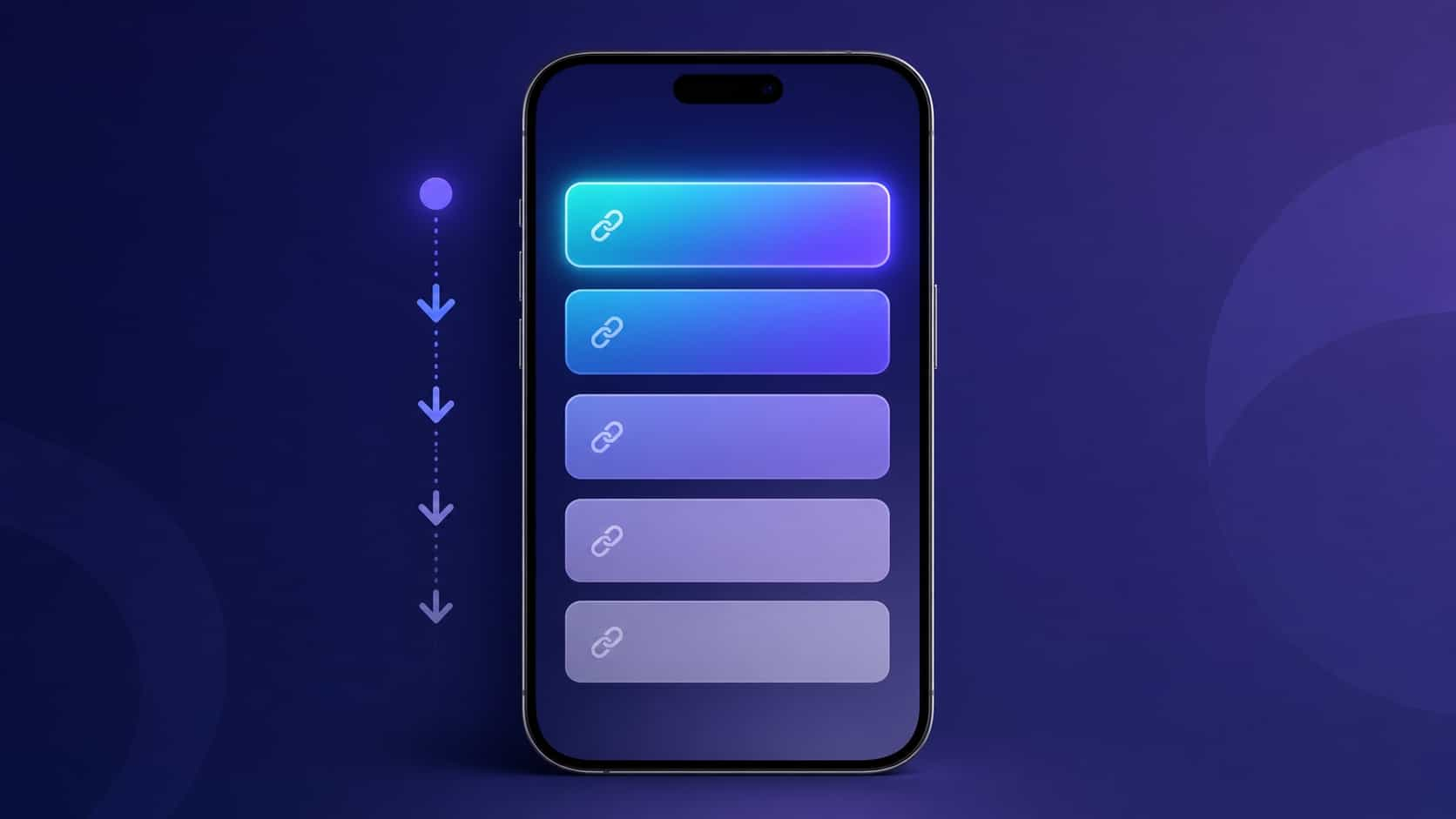
Your listeners don't all use Spotify. Some will want Apple Podcasts, some YouTube, some another app, and none of them wants to search. The simplest answer is one link that lists every place your show is available, which you can put in your Instagram bio, your episode descriptions, a QR code on your merch and the end of every episode.
With VISU, that's your VISU Link at visu.to/yourname. Add your Spotify show first, then your other platforms, your newsletter and a way to contact you for guest requests. VISU Link recognizes Spotify links and shows the Spotify icon automatically. The free plan holds 5 links plus 5 social icons, and you can see how other creators use VISU Link. Put the platform most of your audience uses at the top; our guide to organizing your links by priority explains why order matters.
Quick checklist
- Plan topic, format, name, cover art and schedule before recording.
- Record with your device, Riverside or another tool; Spotify for Creators doesn't record or edit anymore.
- Export MP3, M4A or WAV.
- creators.spotify.com > avatar > Add a new show > Create a new show.
- New episode > Select a file > Details > Content checks > Now or Schedule.
- Verify your account before your first episode goes live.
- Settings > Availability > RSS Distribution, then submit to Apple Podcasts and other apps.
- Customize your page URL and add links to every listening platform.
A podcast grows one listener at a time, and every one of them needs to find the next episode. Create your free VISU page and give your show one link that works in every app.
Frequently asked questions
Do I need a separate host to start a podcast on Spotify?
Spotify for Creators lets you create and host a show and publish it on Spotify without a separate hosting service. You only need a Spotify account and a finished episode file to upload.
Can I record my podcast in Spotify for Creators?
No. Spotify says its own recording and editing tools are no longer available. Record with your device's voice recorder, Riverside or another tool, then upload the finished file.
What file formats does Spotify for Creators accept?
For audio, Spotify for Creators supports MP3, M4A and WAV files in mono or stereo. Spotify says there's no file size limit, but larger files take longer to process.
How do I get my Spotify podcast on Apple Podcasts?
Publish your first episode, go to Settings > Availability > RSS Distribution, enable your RSS feed and submit it to Apple Podcasts with your Apple ID. Spotify doesn't distribute to other apps for you.
Will my video podcast play on other apps?
According to Spotify, videos and video episodes are only available on Spotify. On other platforms you distribute to, those episodes are available as audio only.