
How to Collab on Instagram: Invite, Accept and Plan a Collab Post
How to collab on Instagram step by step: invite collaborators, accept an invite, public vs private rules, who controls the post and where new visitors should go next.
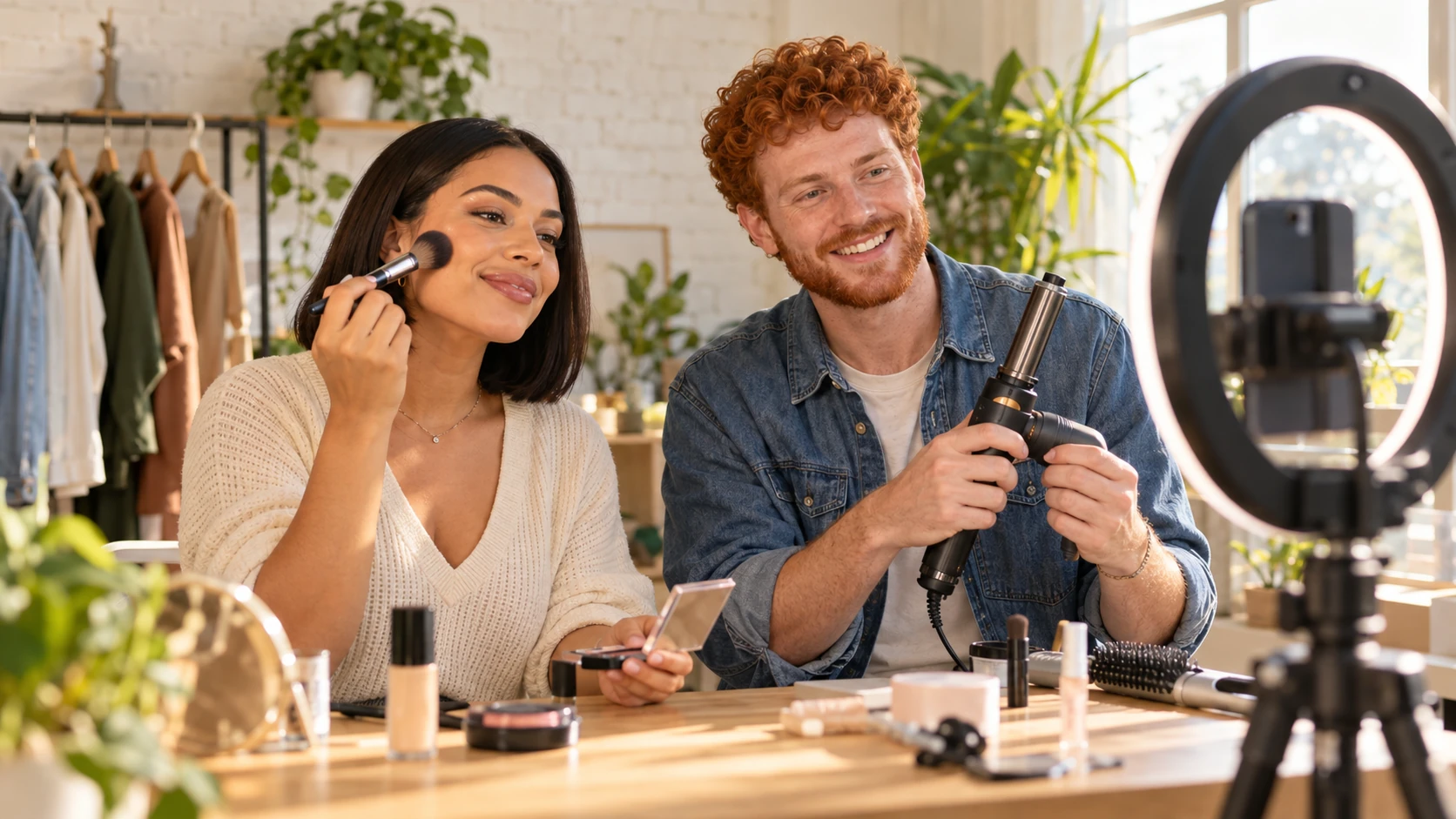
A normal Instagram post reaches your followers. A Collab post reaches your followers and the followers of everyone you invite, appears on every collaborator's profile, and collects one shared pile of likes and comments. For creators who work together, small businesses that partner with each other and friends who make content as a team, it's one of the simplest ways to put the same post in front of two or more audiences at once.
This guide covers how to collab on Instagram step by step, how to accept an invite, who you can invite, what each side controls after the post goes live, and how to plan a collab that sends new people somewhere useful instead of leaving them stuck on one post.
What a Collab post is (and how it differs from a tag)
Instagram calls the feature Collabs. The person who creates the post invites another account as a collaborator. If that account accepts, Instagram adds their username to the post, shares the post with their followers and shows it on their profile too. Everyone who accepts can see all likes and comments on the post.
It's easy to confuse a collab with a tag or a mention, but they work very differently. According to Instagram's Help Center:
- A tag or mention doesn't share the post with your followers. A collab does.
- A tag can land on your profile automatically (unless you approve tags manually). A collab only appears after you accept the invite.
- A tag doesn't make you an author. A collaborator is listed as an author of the post.
Collabs work on feed posts and reels. They don't work on stories: you can mention accounts in a story, but you can't add collaborators to it.

How to collab on Instagram (step by step)
You add collaborators while you create the post, before you publish. The flow in the Help Center is the same for posts and reels, though labels can vary slightly by app version:
- Start a new post or reel as usual and get to the final screen before sharing.
- Tap Tag people.
- Tap Invite collaborator (it may say Invite collaborators on reels).
- Search for the account you want to invite and tap it.
- Tap Done, then share the post.
The post goes live on your profile straight away. The collaborator's name is added, and the post reaches their followers, once they accept.
How many collaborators can you add?
Instagram's Help Center says you can add up to 5 collaborators to a post. The reels article says you can add multiple collaborators. If your app shows a different number when you try, go with what the app says.
How to accept a collab invite
Invites arrive as a message, not as a regular notification. To accept, according to Instagram's Help Center:
- Tap Messages.
- Open the conversation where you received the invite.
- Tap the collaboration invite.
- Tap Review, then Accept.
Before you accept, look at the post itself: once you're a collaborator, it shows on your profile and goes out to your followers under your name.
Who you can invite: public and private accounts
Your account's privacy setting decides who you can invite:
- Public accounts can invite public or private accounts.
- Private accounts can invite public or private accounts, but only accounts that follow them.
There's one detail that surprises people. If a private account invites a public account and the public account accepts, the post is shared publicly through the public collaborator. Instagram shows private accounts an explanation the first time they invite someone, but it's worth knowing before you set up a collab with a public brand or creator.
When a private account accepts an invite, its username appears on the post, but people who want to follow that private account still need to send a request.
Who controls the post after it's published
Collabs are shared, but not equally. The person who created the post is the primary creator, and Instagram's rules follow from that:
- Only the original creator can delete the post. If they delete it, it disappears from every collaborator's profile.
- The collaborator can leave at any time. To remove yourself, open the post, tap Options and tap Stop sharing. The post stays on the creator's profile.
- The creator can remove a collaborator at any time, before or after publishing.
- Blocking ends the collab. If either side blocks the other, the collaboration ends and the post stays with the original creator.
- Deactivation matters. If the original creator deactivates their account, the post is removed from collaborators' profiles as well, and it comes back if they reactivate.
- Privacy follows the creator. If the original creator switches to private, only their followers can see the post.
In practice: whoever cares most about keeping the post long term should be the one who creates it. If a brand pays for a collab, agree on this before anyone hits share.
Why your collab option might be missing
If you don't see Invite collaborator, check these:
- You're trying it on a story. Collabs are for feed posts and reels only.
- Your app is out of date. Update Instagram, close it fully and reopen it.
- The account can't be found or invited. If you're private, the person needs to follow you first.
- Account restrictions. Instagram says accounts that have gone against its guidelines may not have access to Collabs.
Collab ideas that actually help both sides
A collab works best when both audiences get something they wouldn't get from either account alone. Some formats that tend to work:
- Joint tutorials. A hairstylist and a makeup artist each cover one half of a full look.
- Before and after with credit. A photographer and the client brand share the same shoot.
- Event recaps. Two creators who met at a meetup post one carousel together instead of two similar ones.
- Product drops with a partner. A small brand and a creator launch the same item on the same day.
- Series episodes. Two accounts trade the "host" role, so each episode lives on both profiles.
Our guide to audience engagement strategies explains why posts that start a conversation travel further, and a collab is a good place to ask both audiences a question in the caption.
Before you publish, check the basics that make any post perform: a strong first frame, a clear caption and the right format. If you're not sure about those, our guide on how to post on Instagram walks through them.
Plan where the new visitors go next
Here's the part most collabs skip. When the post goes out, people from your partner's audience tap your name, land on your profile and look for a reason to stay. If your bio link points to an old promotion, the moment is lost.
A simple plan for both collaborators:
- Agree on one call to action. "Get the full tutorial", "book a session", "shop the drop". One per collab.
- Make sure each profile has a matching landing spot. Each collaborator updates their own bio link so it leads to that call to action on launch day.
- Put the partner link there too. Each landing page includes a link to the other person, so visitors can follow both.
- Compare results afterwards. Look at what each side saw in their own numbers, not just the likes on the shared post.
This is where a link-in-bio page helps. With VISU, each collaborator has a VISU Link at visu.to/yourname. On launch day, you move the collab link to the top, add a card for your partner and switch it off again when the campaign ends. VISU Link Analytics shows visits and clicks on your page, so you can see whether the collab sent people beyond the post. Our overview of how creators use VISU shows more setups like this.
Free accounts get 5 links plus 5 social icons, which is enough for a launch: the collab link, your partner, your main offer and a couple of evergreen links.
Quick checklist
- Add collaborators before publishing: Tag people, then Invite collaborator.
- Up to 5 collaborators per post, according to Instagram's Help Center.
- Accept invites from Messages, then Review and Accept.
- Private accounts can only invite people who follow them.
- Only the original creator can delete the post; collaborators can leave with Stop sharing.
- No collaborators on stories; use mentions there.
- Agree on one call to action and update both bio links on launch day.
A collab doubles the audience for one post. Create your free VISU page so every new visitor who taps your name finds the next step waiting.
Frequently asked questions
How do I collab on Instagram?
While creating a post or reel, before you share it, tap Tag people, then Invite collaborator. Search for the account, tap it, tap Done and share. The collaborator is added once they accept the invite.
How many collaborators can I add to an Instagram post?
Instagram's Help Center says you can add up to 5 collaborators to a post. If your app shows a different limit, go with what the app says.
How do I accept a collab invite on Instagram?
The invite arrives as a message. Tap Messages, open the conversation with the invite, tap the collaboration invite, then tap Review and Accept.
Can I collab on an Instagram story?
No. Collabs work on feed posts and reels. In stories you can mention other accounts, but you can't add collaborators.
Who can delete a collab post?
Only the original creator. If they delete it, it disappears from every collaborator's profile. A collaborator can remove themselves at any time from the post's Options menu with Stop sharing.